RAHWE Chat & Calls · Team
Talk to your team, face to face.
Without it
Sound familiar?
Team talk is split across personal chat apps.
New joiners are added to groups by hand and leavers stay in them.
Client calls happen on yet another tool, with nothing kept.
What you get
Everything in Chat & Calls
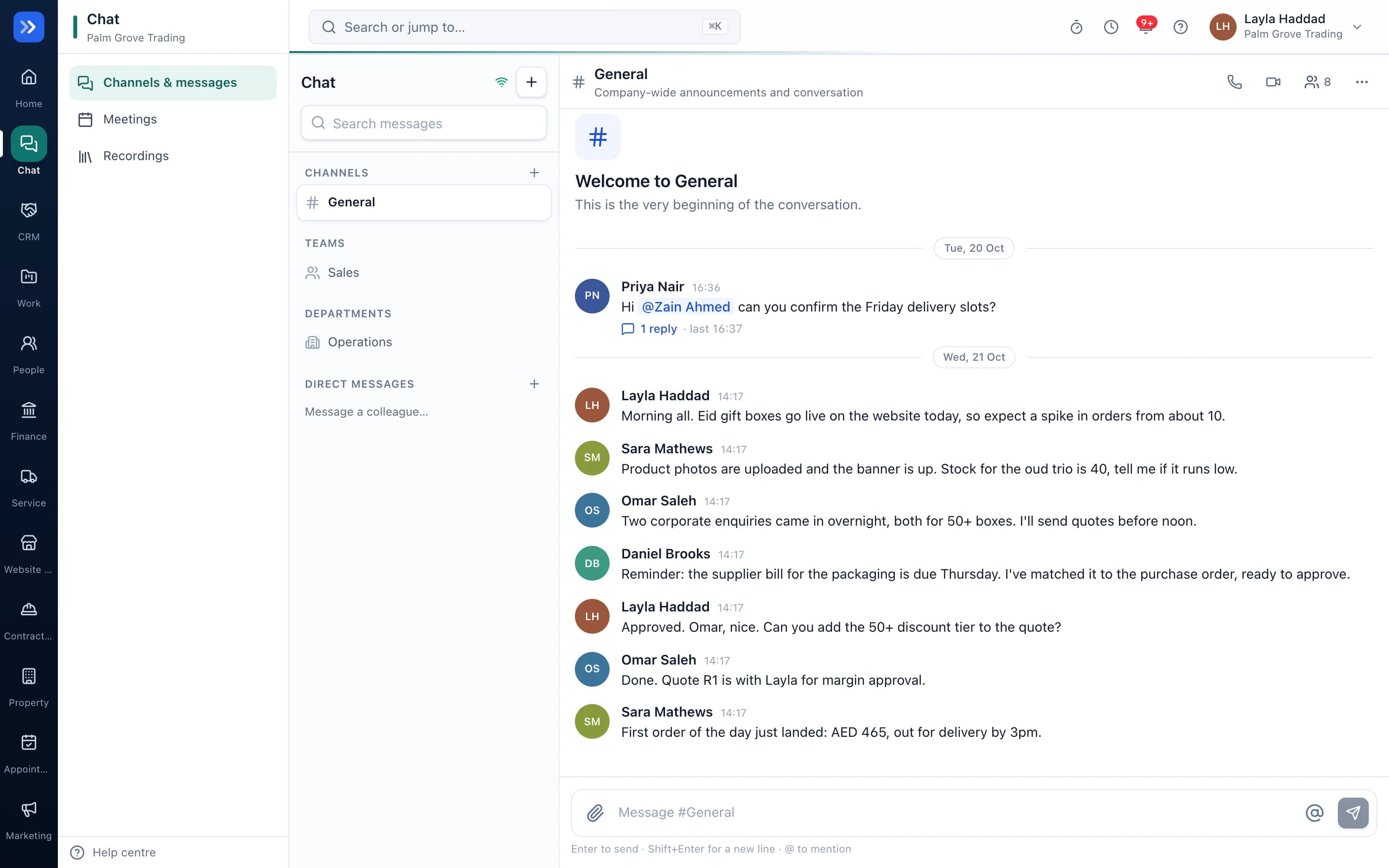
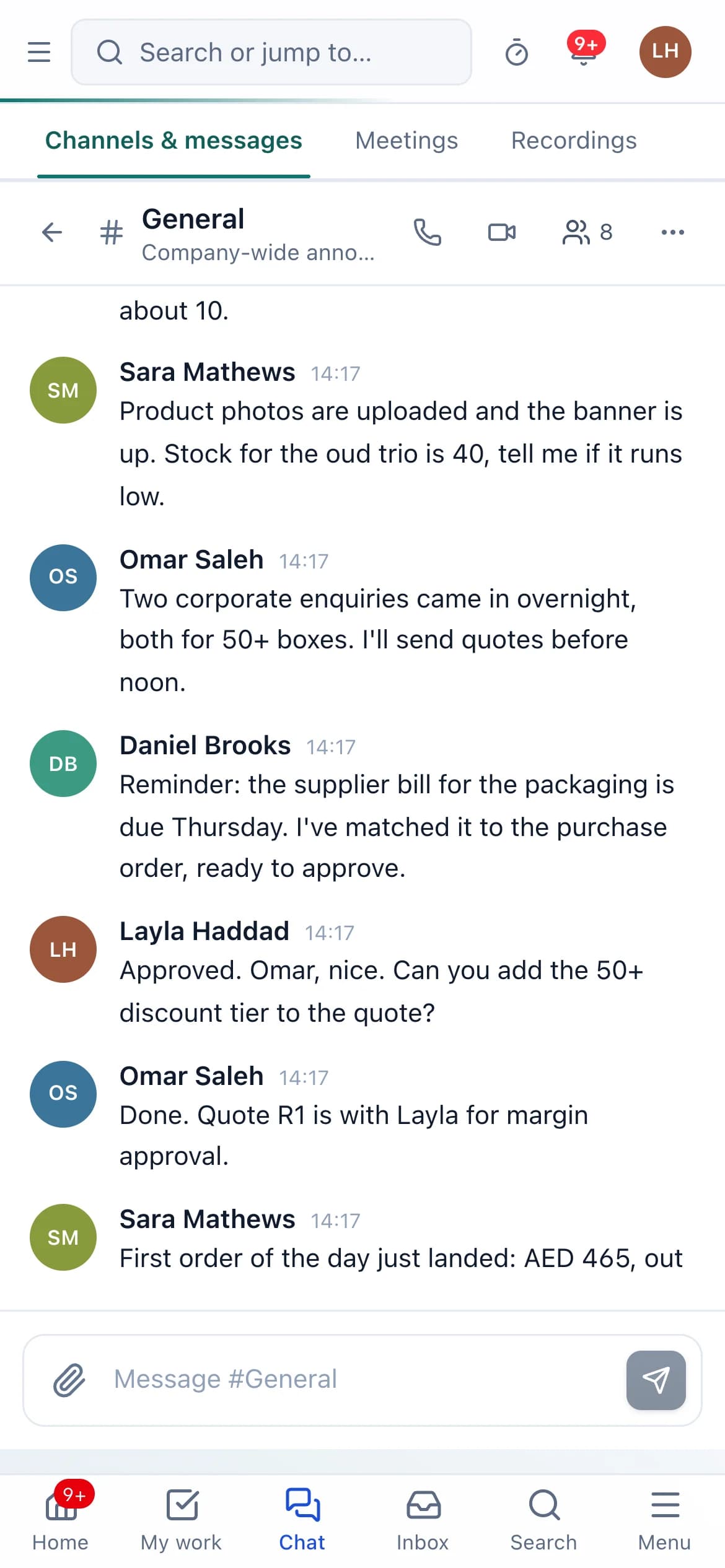
Channels that follow your structure
Every team and department gets a channel automatically. People join and leave as they move in People.
Direct messages, groups and threads
Mentions, reactions, file sharing from Drive, search, unread counts and phone notifications.
Voice and video calls
Start a call from any conversation. Others are rung wherever they are in RAHWE. Up to 6 people, with screen sharing.
Meetings with guest links
Add a video room to any meeting. Outside guests join from a link and wait in a lobby until the host lets them in.
Recording and transcripts
Hosts record after confirming. Everyone is told, and anyone joining later. Transcripts show who spoke and are written on RAHWE's own server.
Retention and audit
Recordings are deleted after the time your organisation sets. Every start, stop, view and delete is logged.
Notifications
Mentions and direct messages reach you by phone push, and an email digest covers what you missed.
Admin controls
Admins choose whether hosts may record, the transcript language and how long recordings are kept, in Settings → Security.
In action
Watch Chat & Calls at work
A real screen recording with a sample company.
How to use it
Up and running in 5 steps
The screen names match what you see in the app.
- 1
Open Chat
Chat
Your team and department channels are already there, created from People. Pick one, or start a direct message with anyone.
- 2
Write, mention and reply in threads
A channel
Type @ to mention someone, react with an emoji, share a file from Drive, and keep side-conversations in threads.
- 3
Start a call
Phone or camera button in any conversation
Everyone else in the conversation is rung. They answer from whatever RAHWE page they have open.
- 4
Schedule a meeting with a video room
Meetings
Create a meeting, then choose Add RAHWE video room. Share the link with outside guests, who wait in a lobby until you admit them.
- 5
Record and find the transcript
Call controls → Record; Chat → Recordings
Confirm that everyone will be told, record, and later open the video with a transcript showing who said what.
Who uses it
Made for the people doing the work
Teams
Replace personal group chats with channels that match the company.
Managers
Run one-to-ones and team meetings, with notes and transcripts.
Client-facing staff
Invite clients to a meeting with one link.
How it flows
One step leads to the next
- 1Message or call
- 2Others are told
- 3Join from any page
- 4Meeting or call happens
- 5Recording and transcript ready
- 6Deleted on schedule
Works with
Better with the rest
Turn these on and they share the same customers, staff and records. Leave them off and Chat & Calls still works on its own.
Questions
Questions about Chat & Calls
Can clients join a call without an account?+
Yes. They open the meeting link, type their name and wait for the host to admit them.
Are calls recorded without telling people?+
No. Only a host can record, after confirming, and everyone sees a recording banner, including people who join later.
Where is the audio processed?+
Calls go directly between the people in them. Transcripts are written by an open-source speech model on RAHWE's own server.
How many people can be on a call?+
Up to six for now. Larger meetings need a dedicated call server, which RAHWE is built to add later.
Try RAHWE Chat & Calls.
Switch on Chat & Calls alone or with the rest of the apps.